There are a few reasons you may want to access your visitors' IP addresses using Google Tag Manager (GTM): to block internal traffic, set rules for firing tags, pre-fill form fields, etc. Tracking IP address with Google Analytics is also possible through this method, but not advisable as it may violate Google's policies regarding personally identifiable information.
This post will show how to collect IP address into a GTM variable, using a script that you can copy and paste.
STEP 1: COLLECT VISITOR IP ADDRESS
For the first step, you will need to pull in the visitor's IP address. There are many ways to do this, but I'll describe how to do it using JavaScript since it's a universal method that will work for nearly any setup.
In GTM, navigate to Tags > New > Custom HTML and paste in the following:
<script type="application/javascript">
  function getIP(json) {
    dataLayer.push({"event":"ipEvent","ipAddress" : json.ip});
  }
</script>

<script type="application/javascript" src="https://api.ipify.org?format=jsonp&callback=getIP"></script>
The tag will look like this:
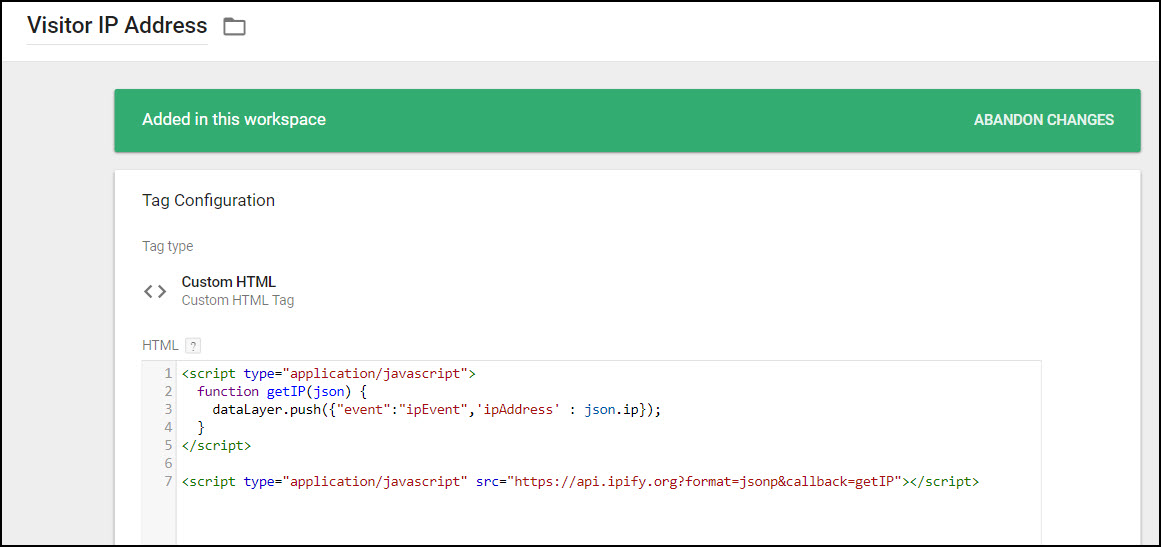
The above JS snippet pulls each user's IP address via https://www.ipify.org/, which is a free IP address API, and then pushes it into the data layer for GTM to read.
You can see how it returns the IP address for your own device by clicking this link: https://api.ipify.org?format=jsonp&callback=getIP.
<script>
window.dataLayer = window.dataLayer || [];
window.dataLayer.push({
    'event':'ipEvent',
    'ipAddress' : '<?=$_SERVER["REMOTE_ADDR"]?>'
});
</script>
STEP 2: SET TRIGGER
The simplest trigger is to set this script to fire on All Pages.
However, to avoid querying the ipify API repeatedly and potentially racking up a lot of hits, you could alternately set this script to fire on just the landing page (the first page a visitor sees) of your site. This way it will only collect IP address once, which works for most cases since IP address rarely changes during a session.
To do this, navigate to Triggers > New > Page View and choose the radio button "This trigger fires on Some Page Views".
Choose Referrer does not contain {{your domain name here}}.

STEP 3: PUSH IP ADDRESS INTO A GTM VARIABLE
Navigate to Variables > User-Defined Variables > New > Data Layer Variable.
Fill in Data Layer Variable Name = ipAddress. Note that this is the same name that was pushed to the data layer in step 1; here we are collecting that value so we can use it in other tags later.

STEP 4: CREATE A TRIGGER ON THE NEW EVENT
Navigate to Triggers > New > Custom Event.
Fill in Event Name = ipEvent. This is the event name that was pushed to the data layer in step 1. By connecting the GTM data layer event to a trigger, you can use it to trigger other tags.

CONCLUSION
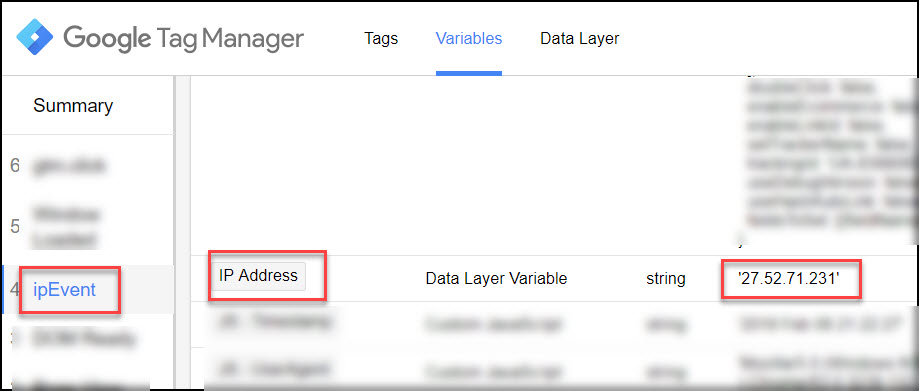
Following the implementation of the above steps, you will now have a new GTM Trigger (ipEvent) and Variable (IP Address), which you can access in other tags or use to set triggers. This is a screenshot of the output in Preview mode.